- Published on
- |- 次浏览
UE4发布steam游戏流程
- Authors

- Name
- 东哥
2019年4月18日在steam发布了个人一款独立动作游戏《EndlessHell》,本文将借此记录发布steam游戏的流程
UE4版本4.21
文中内容前半部分为提交当时编辑,搬运至博客后更新后续部分
配置
SteamDLL
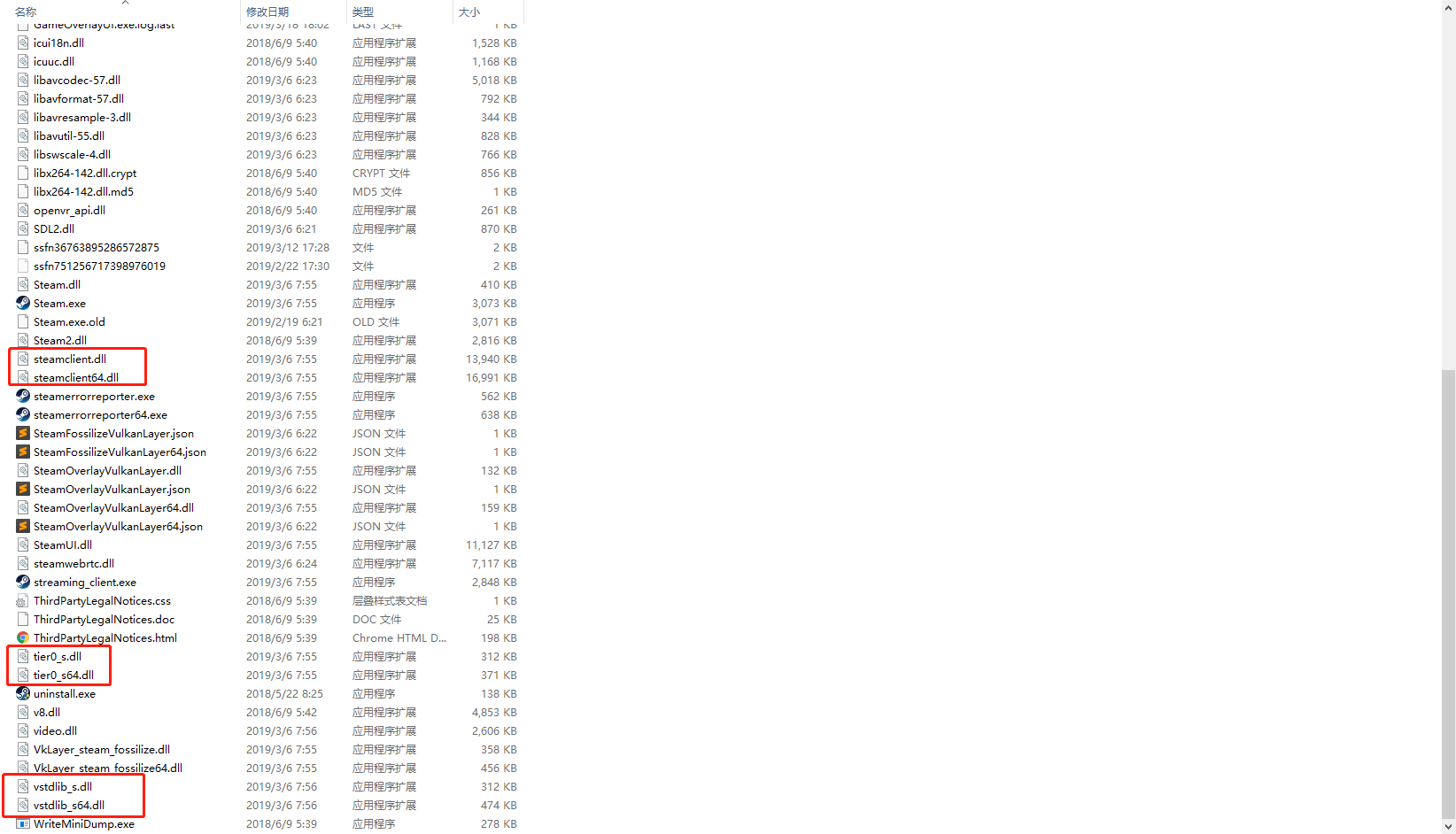
复制steam程序中的dll文件至本地引擎文件内*\UE_4.21\Engine\Binaries\ThirdParty\Steamworks\Steamv139
如下图所示
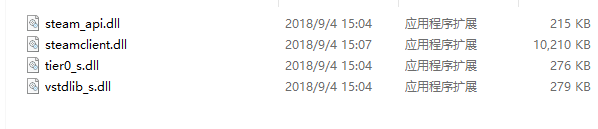
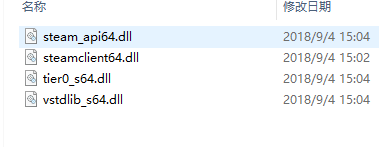
最终效果如下
Engine.ini
添加如下代码
[/Script/Engine.GameEngine]
+NetDriverDefinitions=(DefName="GameNetDriver",DriverClassName="OnlineSubsystemSteam.SteamNetDriver",DriverClassNameFallback="OnlineSubsystemUtils.IpNetDriver")

[OnlineSubsystem]
DefaultPlatformService=Steam

[OnlineSubsystemSteam]
bEnabled=true
SteamDevAppId=480//测试ID,正式包用自己的ApplicationID
Achievement_0_Id=ACH_WIN_ONE_GAME //添加成就,正式包用自己的成就
[/Script/OnlineSubsystemSteam.SteamNetDriver]
NetConnectionClassName="OnlineSubsystemSteam.SteamNetConnection"
UE4配置
开启子系统,如下图

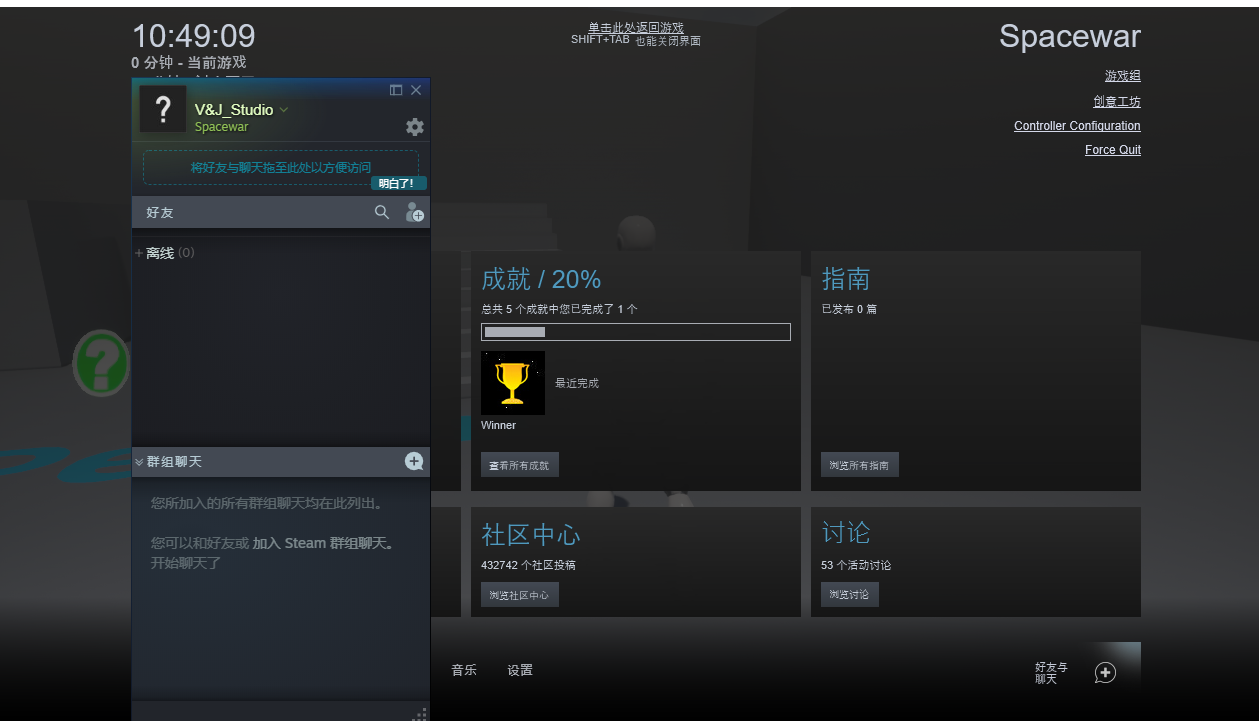
至此进入游戏后按shift+tab可以唤出steam窗口,记住需要使用==独立窗口模式运行==
- 如需使用steamapi,在target.cs中开启如下选项
bUsesSteam = true;
- 同时在
build.cs中如下模块
PublicDependencyModuleNames.AddRange(new string[] {
            "OnlineSubsystem",
            "OnlineSubsystemUtils",
            "Steamworks"
        });

 DynamicallyLoadedModuleNames.Add("OnlineSubsystemSteam");
SteamWork
- 首先需要注册一个stemawork账号
- 发布steam游戏需要申请一个ID,本作ID是1055000(此数字+1为depot的ID),以下用的此数字均为游戏ID,另外需要一次性付费100美刀(当时价格),当销售额度达到1000美刀后返还
- 另外需要提供个人银行账户,每月月初当上个月份税后金额达到100刀以上会打款到账户
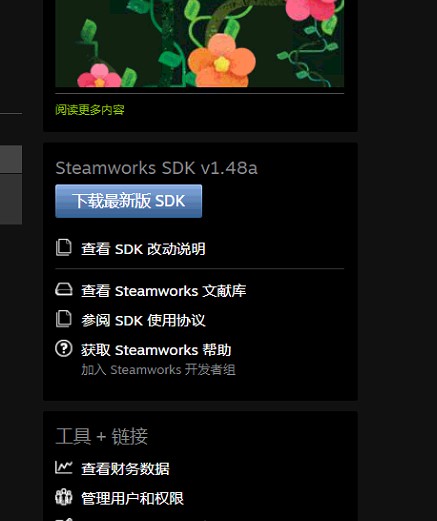
- 在进入下面之前需要先下载steamSDK,如steamwork首页右下角位置,如图
应用管理
应用程序
通用
设置正确的游戏名字和平台
steam输入
提供的输入方式,如手柄,xbox等
SteamPipe
提交版本
这个是版本生成器,用于提交版本和选择当前在商店下载的游戏版本
提交版本可以使用SDK包中的工具提交,在开始提交之前需要设置如下内容
- 修改
sdk\tools\ContentBuilder\scripts\app_build_*.vdf文件为app_build_1055000.vdf,同时修改内容为
"appbuild"
{
	"appid"	"1055000"
	"desc" "Your build description here" // description for this build
	"buildoutput" "..\output\" // build output folder for .log, .csm & .csd files, relative to location of this file
	"contentroot" "..\content\" // root content folder, relative to location of this file
	"setlive"	"" // branch to set live after successful build, non if empty
	"preview" "0" // to enable preview builds
	"local"	""	// set to flie path of local content server

	"depots"
	{
		"1055001" "depot_build_1055001.vdf"
	}
}
必须修改的是appid和depots的内容, 对应的ID修改成自己的
- depot_build_1055001.vdf文件同样修改内容为
"DepotBuildConfig"
{
	// Set your assigned depot ID here
	"DepotID" "1055001"

	// Set a root for all content.
	// All relative paths specified below (LocalPath in FileMapping entries, and FileExclusion paths)
	// will be resolved relative to this root.
	// If you don't define ContentRoot, then it will be assumed to be
	// the location of this script file, which probably isn't what you want
	"ContentRoot"	"E:\Download\steamworks_sdk_144\sdk\tools\ContentBuilder\content"

	// include all files recursivley
  "FileMapping"
  {
  	// This can be a full path, or a path relative to ContentRoot
    "LocalPath" "*"

    // This is a path relative to the install folder of your game
    "DepotPath" "."

    // If LocalPath contains wildcards, setting this means that all
    // matching files within subdirectories of LocalPath will also
    // be included.
    "recursive" "1"
  }

	// but exclude all symbol files
	// This can be a full path, or a path relative to ContentRoot
  "FileExclusion" "*.pdb"
}
主要修改depotsid和content的路径
-
运行
\sdk\tools\ContentBuilder\builder\steamcmd.exe准备提交内容 -
```\sdk\tools\ContentBuilder\content``内是游戏包的内容,请确保exe启动名字与==[安装>通用安装>启动选项>可执行文件]==名字一样
-
更新>登录>运行如下脚本提交
run_app_build E:\Download\steamworks_sdk_144\sdk\tools\ContentBuilder\scripts\app_build_1055000.vdf路径为app_build文件的路径
-
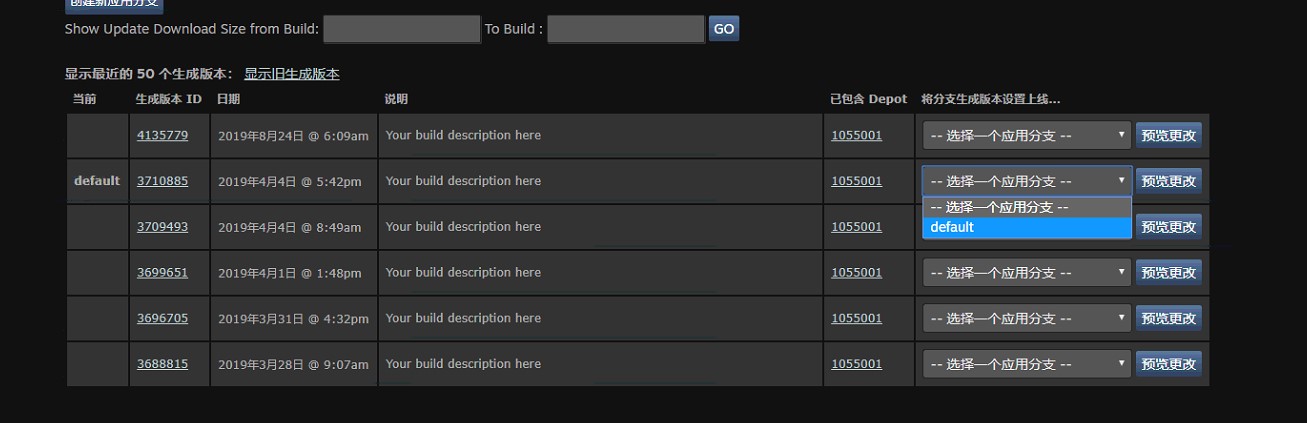
提交后看到如下图的新的分支,修改default为当前展示和下载的分支
depot设置
此页面比较简单,需要正确设置程序支持的语言和平台
安装
通用安装
安装文件夹
下载安装以后的文件夹名字
启动选项
- 可执行文件:启动程序,一般就是引擎打包以后那个exe文件
- 其他正确设置就可以
可再发行文件
Steam 可以自动安装您的许多常见可再发行文件
客户端图像
根据要求规格上传各种icon文件
统计与成就
统计
设置统计的类型和名称
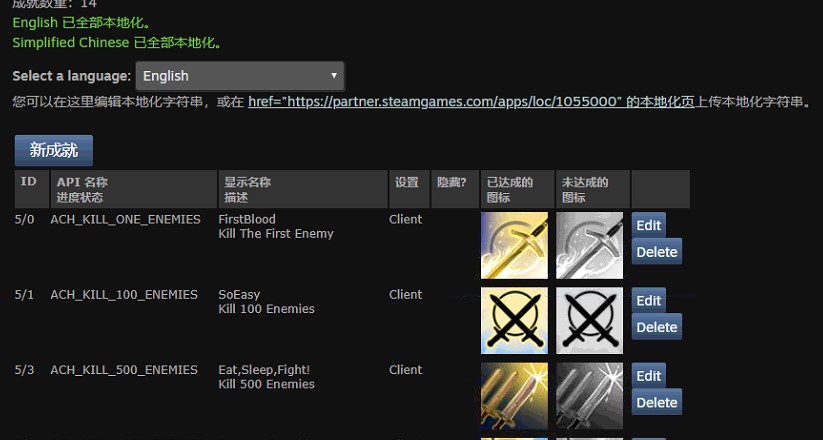
成就
设置名称、描述和icon
本地化
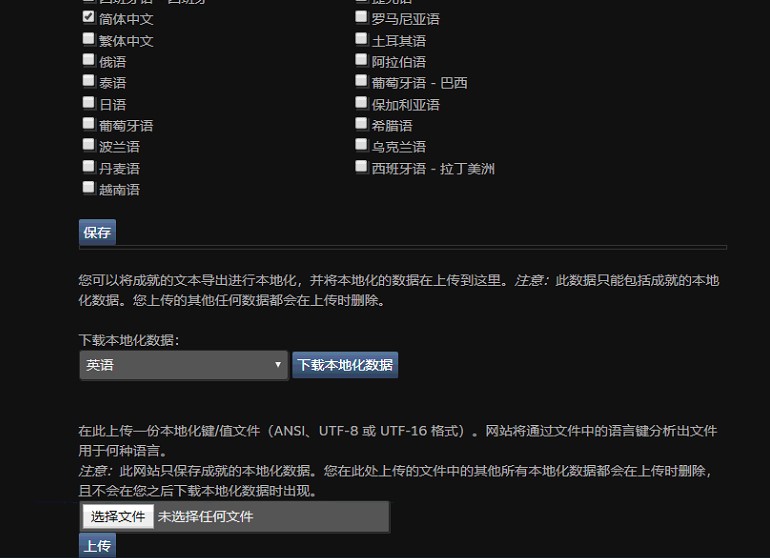
成就名称和描述的本地化,可以下载文档再提交更新
管理序列号
申请序列号,注意其中不同的序列号的用途
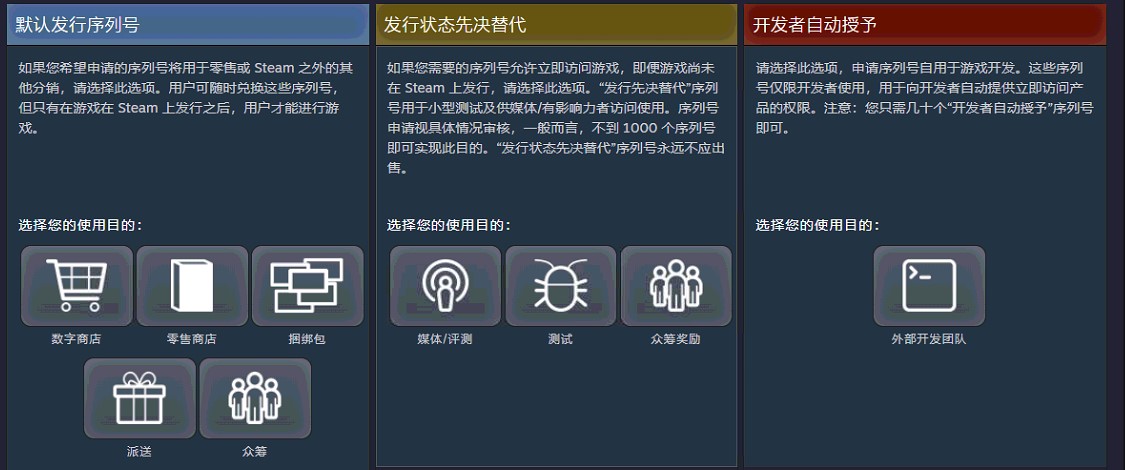
在首页有下载选项

发布
所有修改完后都需要进入发布选项进行发布到商店,系统会提示差异
成就API
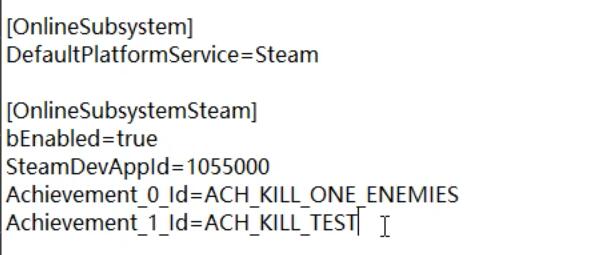
- 很容易被忘记的一点,ini文件利必须设置与网站成就对应的字符串,如下图
- 蓝图api
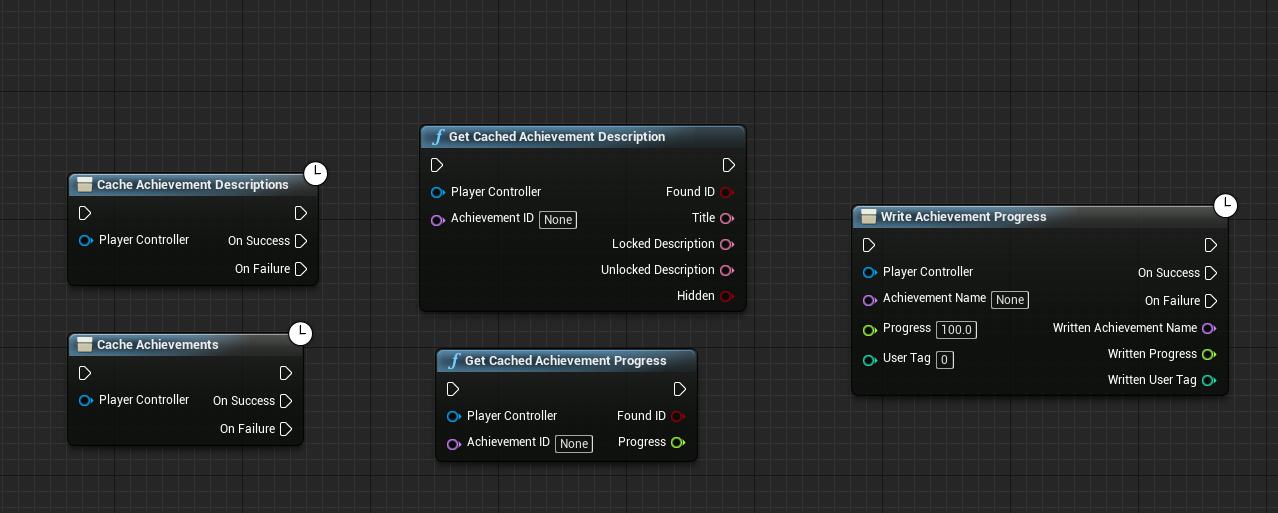
读写成就之前必须先缓存成功
目前版本对于成就进度条的读取和设置只有0或者1,所以只要写入的参数大于0成就即完成,不知后续更新能不能完善