- Published on
- |- 次浏览
UE4压缩和解压缩工具
- Authors

- Name
- 东哥
前言
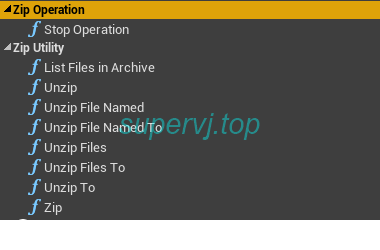
UE4编辑器和运行时使用解压缩和压缩功能, 一个简单的蓝图库, 源代码来自GitHub的ZipUtility Plugin
对其做了稍微修改, 修复了部分因为版本更新的报错信息(大量头文件包含问题)
本文简单介绍这个插件的使用方式
使用
- 下载/克隆
- 放到目录
项目/Plugins/内 - 刷新项目
检查VS是否安装了最新的
ATL和MFC组件,否则会提示atlbase.h找不到
如果已经安装了还是报错, 检查
ZipUtility.Build.cs文件
检查如下字段,默认是vs2017的, 我这里改成了2019
private string VsDirectory
    {
        get
        {
            // Trying to find VS installation directory from registry
            string regPath = (string)Registry.GetValue(@"HKEY_LOCAL_MACHINE\SOFTWARE\WOW6432Node\Microsoft\VisualStudio\SxS\VS7\", "15.0", "");
            if (!string.IsNullOrEmpty(regPath))
            {
                Console.WriteLine("ZipUtility: Found VS path in registry: " + regPath);
                return regPath;
            }
            else
            {
                // If failed - using the most common install path
                string vsDefaultBasePath = @"C:\Program Files (x86)\Microsoft Visual Studio\2019";
                string vsVersion = Directory.GetDirectories(vsDefaultBasePath)[0];
                string vsPath = Path.Combine(vsDefaultBasePath, vsVersion);
                Console.WriteLine("ZipUtility Warning: Using default VS path: " + vsPath);
                return vsPath;
            }
        }
    }

    private string ATLPath
    {
        get
        {
            // Trying to find ATL path similar to:
            // C:/Program Files (x86)/Microsoft Visual Studio/2019/Community/VC/Tools/MSVC/14.14.26428/atlmfc
            string atlPath = "";
            try
            {
                var vsDir = VsDirectory;
                if (!string.IsNullOrEmpty(vsDir))
                {

                    string msvcPath = Path.Combine(vsDir, @"VC\Tools\MSVC\");
                    string msvcVersion = Directory.GetDirectories(msvcPath)[0];
                    atlPath = Path.Combine(msvcPath, msvcVersion, "atlmfc");
                }
            }
            catch (Exception ex)
            {
                Console.WriteLine("ZipUtility Error: can't find VS path: " + ex.ToString());
            }

            if (!Directory.Exists(atlPath))
            {
                Console.WriteLine("ZipUtility Error: Couldn't find an ATLPath, fix it in ZipUtility.Build.cs");
            }
            return atlPath;
        }
    }
比如我这边的路径是C:\Program Files (x86)\Microsoft Visual Studio\2019\Community\VC\Tools\MSVC\14.28.29910\atlmfc,需要与上述csharp指定的atl路径匹配,否则在VS编译会报警告和错误
尝试在
Property->VC++ Directories->Include Directories中加入类似Microsoft Visual Studio\2019\Community\VC\Tools\MSVC\14.28.29910\atlmfc\include的路径
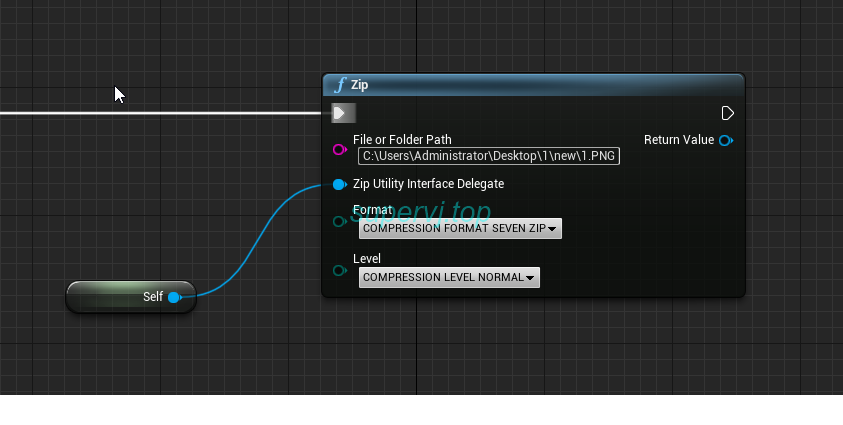

每个方法都需要提供一个UObject类对象, 该对象如果挂上接口就可以获取回调事件